
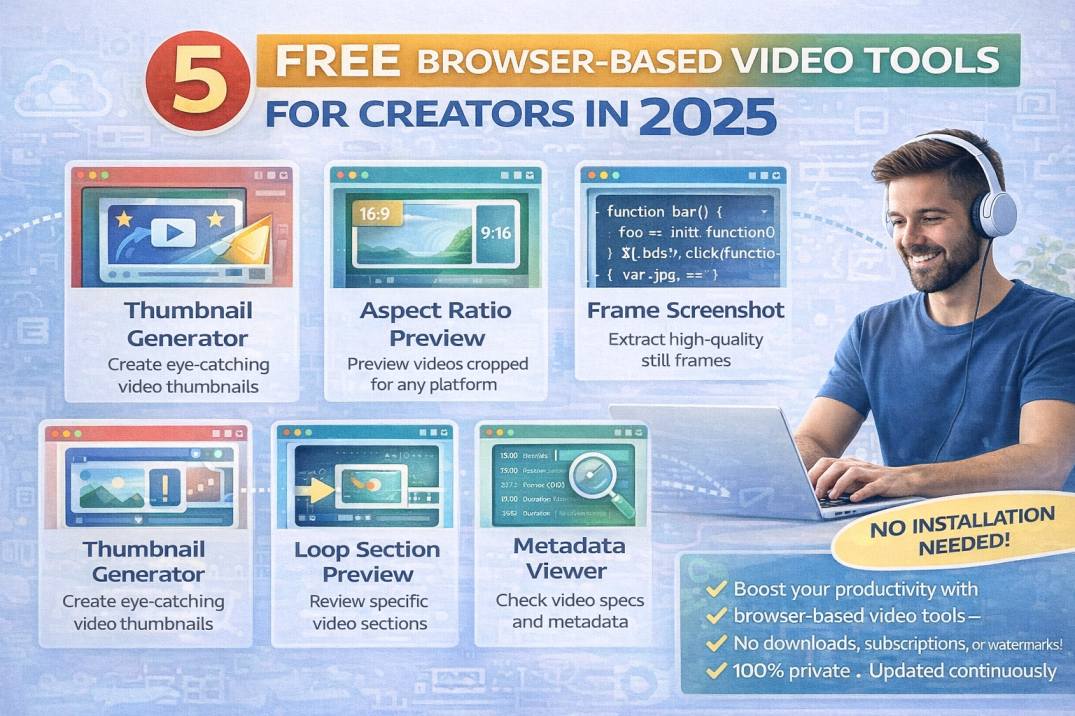
Creating video content in 2025 requires more than just a camera and editing software. Whether you're a YouTuber, TikTok creator, online educator, or social media manager, you need a toolkit of specialized utilities to streamline your workflow. Here are 5 free browser-based video tools that will transform how you create and publish content—without downloading any software.
About the Author
Written by the vidooplayer Team with 10+ years building tools for content creators. Our platform serves millions of users worldwide with free, privacy-focused web tools designed to simplify video production workflows.
Why Browser-Based Video Tools Matter
Traditional video workflows often require expensive software, powerful computers, and time-consuming file transfers. Browser-based tools change this paradigm by offering:
- Zero Installation: Work on any device with a web browser
- Complete Privacy: Files process locally in your browser—nothing uploaded to servers
- Cross-Platform: Works on Windows, Mac, Linux, Chromebook, even tablets
- Always Updated: No software updates to manage
- Free Access: No subscriptions or hidden costs
💡 Pro Tip: All 5 tools in this guide process your video files entirely in your browser. Your content never leaves your device, making them ideal for working with unreleased or private footage.
1. Video Thumbnail Generator
Thumbnails make or break your video's click-through rate. Studies show that 90% of top-performing YouTube videos have custom thumbnails. Our Video Thumbnail Generator lets you extract perfect frames from any video in seconds.
Key Features
- Auto-generated thumbnails: Instantly creates 8 thumbnails from key moments throughout your video
- Custom frame capture: Scrub to any specific moment and capture with one click
- Multiple formats: Download as PNG or JPG in optimal resolution
- Bulk download: Download all generated thumbnails at once
Use Cases for Content Creators
- Creating YouTube thumbnails without screenshotting your video editor
- Capturing multiple options for A/B testing
- Extracting frames for social media promotion posts
- Creating preview images for video courses
📝 Creator Workflow Example:
Upload your finished video → Generate 8 automatic thumbnails → Download your favorites → Edit in Canva or Photoshop → Upload to YouTube. Total time: Under 2 minutes.
2. Video Aspect Ratio Preview
Publishing content across multiple platforms? Each has its own preferred aspect ratio. Our Video Aspect Ratio Preview tool shows exactly how your video will look when cropped for different platforms—before you spend time editing.
Supported Aspect Ratios
- 16:9 (YouTube/Landscape): Standard widescreen format
- 9:16 (TikTok/Reels/Shorts): Vertical video format
- 1:1 (Instagram Square): Perfect for feed posts
- 4:5 (Instagram Portrait): Maximum feed visibility
- 4:3 (Classic): Traditional TV format
- 21:9 (Cinematic): Ultra-wide movie format
Why This Matters
Imagine spending 2 hours editing a video for YouTube, only to realize your subject's head gets cut off when cropped for TikTok. With the Aspect Ratio Preview tool, you can identify these issues before you start editing, saving hours of rework.
3. Video Frame Screenshot Tool
Sometimes you need precise control over frame extraction. The Video Frame Screenshot tool offers frame-by-frame navigation and high-resolution capture.
Key Features
- Frame-by-frame navigation: Move forward or backward one frame at a time
- Timestamp display: See exact timecode for each frame
- High-resolution capture: Extract frames at original video quality
- Multiple export formats: PNG for quality, JPG for smaller files
Perfect For
- Capturing the exact moment of a facial expression
- Creating tutorials with specific frame references
- Documenting product demonstrations
- Extracting stills from action footage
4. Video Loop Section Preview
The Video Loop Section Preview tool is perfect for reviewing specific portions of your video repeatedly. Set start and end points, and the tool will loop that section continuously.
Key Features
- Precise time selection: Set exact start and end points down to the second
- Speed control: Slow down to 0.25x or speed up to 2x
- Quick presets: 5s, 10s, 30s, 1min loop presets
- Loop counter: Track how many times you've reviewed a section
- Keyboard shortcuts: Space for play/pause, S for start, E for end
Use Cases
- Video editors: Review transitions and cuts repeatedly
- Dance/fitness creators: Practice choreography from reference videos
- Gaming creators: Analyze gameplay moments for commentary
- Musicians: Study technique from performance videos
🎯 Workflow Tip: When reviewing your own content, loop problem sections at 0.5x speed to catch issues you might miss at normal playback. This is especially useful for spotting audio sync problems or brief visual glitches.
5. Video Metadata Viewer
Before publishing, smart creators check their video metadata. The Video Metadata Viewer reveals technical information that affects playback, compatibility, and even SEO.
What You'll Learn
- Resolution: Confirm your export settings (1080p, 4K, etc.)
- Frame rate: Verify 24fps, 30fps, or 60fps
- Codec: Check H.264, H.265, or other compression formats
- File size: Ensure it's under platform upload limits
- Duration: Confirm exact video length
- Audio specs: Bitrate, channels, sample rate
Why Metadata Matters
Different platforms have different requirements. YouTube supports 4K at 60fps, but TikTok might re-encode your video. Instagram has strict length limits. Knowing your video's technical specs helps you:
- Avoid upload failures due to incompatible codecs
- Identify why a video looks blurry on certain platforms
- Optimize file size for faster uploads
- Troubleshoot audio sync issues
Bonus: Video Playback Speed Controller
While reviewing reference content, use our Video Playback Speed Controller for precise speed adjustments from 0.25x to 4x, with pitch preservation for natural-sounding audio at any speed.
Building Your Content Creation Workflow
Here's how these tools fit into a typical content creation workflow:
Pre-Production
- Use Aspect Ratio Preview on reference footage to plan your framing
- Review tutorials with Loop Section Preview at variable speeds
Post-Production
- Check export quality with Metadata Viewer
- Review edits using Loop Section Preview
- Preview cross-platform crops with Aspect Ratio Preview
Publishing
- Generate thumbnails with Thumbnail Generator
- Capture promotional stills with Frame Screenshot
- Verify final specs with Metadata Viewer
Privacy: Your Content Stays Yours
All five tools process your videos entirely in your browser. This means:
- No uploads: Your video never leaves your device
- No waiting: Instant processing without server queues
- No file limits: Process files of any size your browser can handle
- No accounts: Use immediately without registration
- No watermarks: Export clean, unmarked files
⚠️ Important for Creators: Many online video tools upload your content to their servers. This creates risks for unreleased content, brand partnerships with NDAs, or simply private personal videos. Our browser-based approach eliminates this concern entirely.
Platform-Specific Tips
YouTube Creators
- Use Thumbnail Generator to create multiple options for A/B testing
- Check Metadata Viewer to ensure 4K exports are properly encoded
- Preview 16:9 aspect ratio for standard videos, 9:16 for Shorts
TikTok/Instagram Reels Creators
- Always preview 9:16 aspect ratio before editing
- Use Loop Preview to study trending content patterns
- Extract frames for carousel posts promoting your videos
Online Educators
- Use Frame Screenshot for course preview images
- Check video specs match your LMS platform requirements
- Generate chapter thumbnails for video navigation
Conclusion: Work Smarter, Create Faster
The difference between amateur and professional content often comes down to workflow efficiency. These 5 free tools help you:
- ✅ Create click-worthy thumbnails in seconds
- ✅ Preview content for any platform before editing
- ✅ Extract perfect frames for promotion
- ✅ Review and analyze video sections efficiently
- ✅ Verify technical specs before publishing
Best of all, they're completely free, require no installation, and keep your content private. Bookmark these tools and integrate them into your content creation workflow today.
🚀 Get Started Now
Ready to streamline your video workflow? Try these tools on your next project:
- Video Thumbnail Generator — Create click-worthy thumbnails
- Aspect Ratio Preview — Preview for any platform
- Frame Screenshot — Capture perfect stills
- Loop Section Preview — Review content efficiently
- Metadata Viewer — Verify technical specs


