After preparing exhibits for over 200 court filings, I've learned that proper document organization isn't just about compliance—it's about protecting your case. Here's the complete workflow that keeps legal teams organized and judges satisfied.
It's filing day. 4:30 PM. The Motion for Summary Judgment is ready, but the 47 exhibits referenced in the brief are a chaotic mess of PDFs, JPEGs, and emails named "scan_001.pdf" and "screenshot final v2.jpg".
Every paralegal has had this nightmare. In the legal world, a disorganized exhibit list isn't just unprofessional—it can get your filing rejected. I once saw a crucial exhibit excluded because it was mislabeled, nearly costing the client a six-figure settlement.
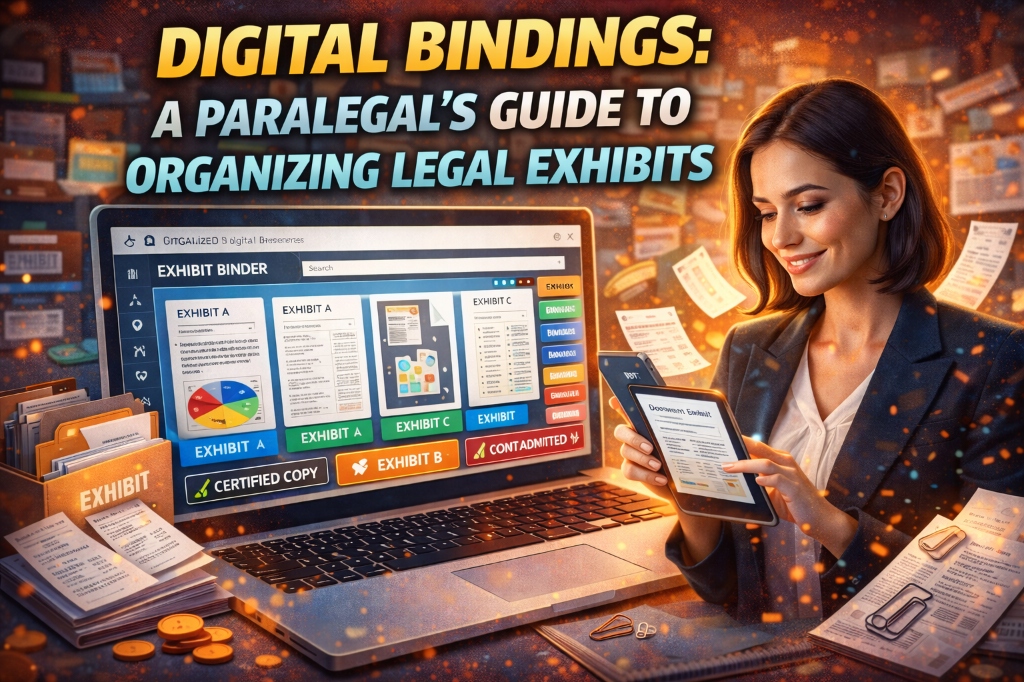
This guide outlines strict "Digital Binding" protocols for organizing evidence. Whether you're using Relativity, Adobe Acrobat Pro, or just a file folder system, these principles ensure your exhibits are bulletproof, searchable, and ready for the judge's tablet.
The "Electronic First" Courtroom Standard
Federal and state courts have moved decisively to electronic filing (CM/ECF). This means your exhibits are viewed on screens, not binders. This shifts the priority from "neatly stapled" to "perfectly digital."
Core Digital Requirements:
- OCR Text Recognition: Every scanned document must be searchable (Ctrl+F compatible).
- File Naming Conventions: Filenames must strictly follow court rules (e.g., "Ex01-Contract.pdf").
- File Size Limits: Most portals reject files over 25MB or 50MB. Large exhibits must be split.
- Redaction: Metadata must be scrubbed, and private info (SSNs, dates of birth) permanently blacked out.
The 7-Step Exhibit Workflow
Detailed implementation of the workflow that transforms a pile of documents into a court-ready filing package.
Collection & Uniform Naming
Before you number anything, give every potential exhibit a descriptive filename. Never number files until the brief is finalized (exhibit numbers change constantly during drafting).
// Good Filename Format
YYYY-MM-DD - Description - DocType.pdf
2024-05-12 - Email Smith to Jones re Settlement - Email.pdf
2023-11-01 - Purchase Agreement Signed - Contract.pdf
Why date first? It forces chronological sorting in Windows Explorer/Finder, which is usually how attorneys want to review the timeline.
Convert & Flatten to PDF/A
Courts require PDF format. Specifically, PDF/A (Archival) is the gold standard because it embeds fonts and removes active content like Javascript which poses security risks.
- • Emails (.msg): Print to PDF immediately. Attachments must be merged behind the email or saved as separate exhibits depending on local rules.
- • Excel (.xlsx): Print relevant tabs to PDF. Verify column formatting explicitly.
- • Webpages: Capture full scroll, not just visible area. Use browser print tools.
OCR (Optical Character Recognition)
If a judge cannot copy-paste text from your exhibit into her opinion, you are making her job harder. Always OCR.
Use Adobe Acrobat "Enhance Scans" or dedicated OCR tools. For batch processing 100+ files, this step must be automated overnight.
Redaction (The Dangerous Step)
Warning: Drawing a black box over text is NOT redaction. Tech-savvy clerks can remove that layer. You must use "Sanitize" or "Apply Redactions" features that permanently burn pixels over the text.
Must Redact: Social Security Numbers (all but last 4), Birth Dates (all but year), Minors' Names (initials only), Financial Account Numbers (all but last 4).
Exhibit Stamping
Once the exhibits are finalized in the brief, apply digital stamps.
Bottom-Right Stamp (Preferred)
Ensures stamp doesn't obscure header info.
Bates Numbering
Sequential numbering for massive productions.
Indexing & Hyperlinking
Create a master "Index of Exhibits" PDF.
Advanced Tip: Use Adobe's "Link" tool to create clickable links in your brief. When the judge clicks "See Exhibit A", the PDF should jump to that attachment or open that file. This "eBrief" capability impresses courts and wins valid favors.
Compression & Splitting
Finally, check file sizes.
- • If a PDF > 25MB: Split into "Part 1" and "Part 2".
- • Use "Reduce File Size" tools, but check image quality. A blurry contract is useless.
Paralegal Toolkit
Essential tools to handle documents at scale without Adobe Acrobat Pro subscription costs.
PDF Splitter
Break up 100MB exhibits into court-compliant chunks.
Image to PDF
Convert JPG photos of evidence into standard PDFs.
Conclusion
Great legal arguments wins cases, but great organizations ensures those arguments are heard. By treating the exhibit preparation process with the same rigor as legal drafting, paralegals become indispensable assets to the litigation team.